
🔄 How to Factory Reset a Yealink Phone (Using the Keypad)
This guide explains how to perform a factory reset directly from the keypad of a Yealink IP phone.
A factory reset will:
- Remove all current programming
- Restore default settings
- Reboot the device
After the reset, the phone may automatically download its configuration again if auto-provisioning is enabled.
🛠️ Factory Reset Procedure
1️⃣ Locate the OK Button
On the left side of the keypad, locate the OK button in the center of the navigation arrows.
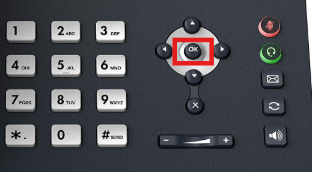
2️⃣ Hold the OK Button
Press and hold the OK button for approximately 5 seconds.
The phone screen will display:
Reset to factory default
(📸 Photo showing the reset confirmation message)
3️⃣ Confirm the Reset
When prompted:
- Press the OK soft key located at the bottom-right of the screen to confirm.
4️⃣ Wait for the Reboot
The phone will:
- Restart
- Restore factory settings
- Reboot automatically
⚠️ Some firmware versions may reboot a second time while applying updates or downloading provisioning files.
✅ After the Reset
Once the process is complete:
- The device will restart
- The phone may automatically provision and download its services
- Registration may take a few minutes depending on the network and provisioning server
⚠️ Important Notes
- A factory reset removes local settings and custom programming
- Ensure auto-provisioning is configured before resetting the device
- If the phone does not reprogram automatically, contact your system administrator or UsVox Support
📞 Support
For additional assistance:
📞 1-786-275-5888