📱 Activating SMS/MMS on a DID (TEXT)
Before SMS/MMS can be enabled on a DID, you must first create a messaging campaign and then activate messaging on the same number.
IMPORTANT:
Review the 🚨E911 service notes for the final steps for any account sending or receiving SMS with a different number from their DID using E911 services.
Step 1: Activate SMS/MMS on the DID
-
Go back to the Home page and click on "ADD, UPDATE, REMOVE FEATURES".
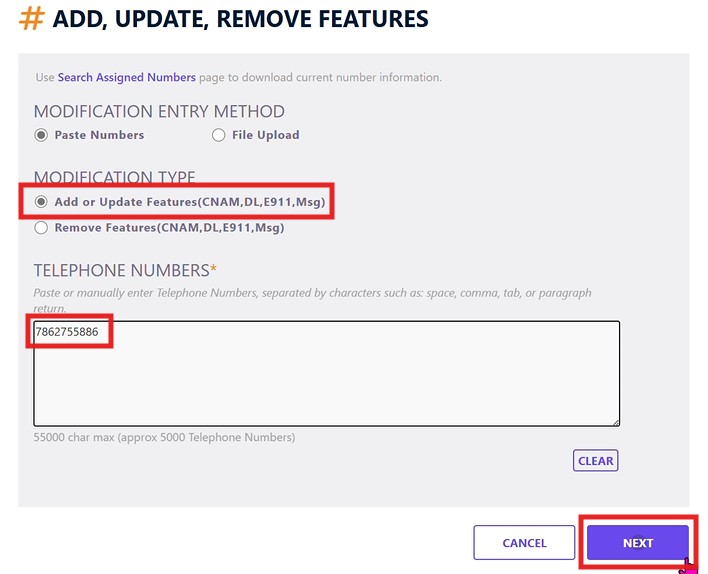
Select the option: "ADD OR UPDATE
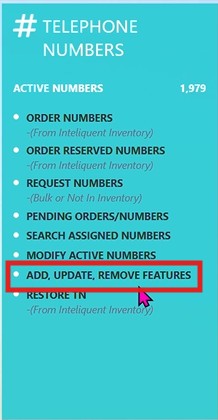
FEATURES (CNAME, DL, E911, MSG)".
Enter the Phone Number and click Next.
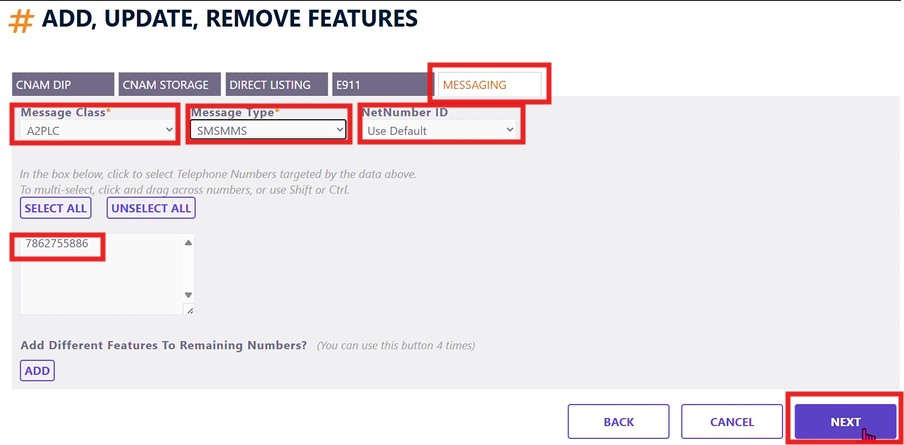
On the next screen, go to the Messaging tab.
Set the following fields:
- Messaging Class:
A2PLC - Message Type:
SMSMMS - NetNumber ID:
Use Default
- Messaging Class:
- Select the number in the Number Box.
- Click Next to finalize the configuration.
✅ Important Notes
- Make sure the campaign is active before configuring the messaging tab.
- If SMS/MMS still doesn't activate, double-check the Messaging Class and Message Type fields.
BE CAREFUL: ONLY DO THIS STEP IF SENDING SMS IS REQUESTED
Step 2: Create a Messaging Campaign
- Log in to the IQ (DID Vendor) portal.
-
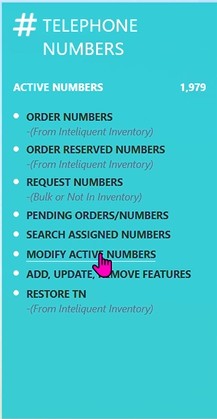
From the Home page, click on "Modified Active Numbers".
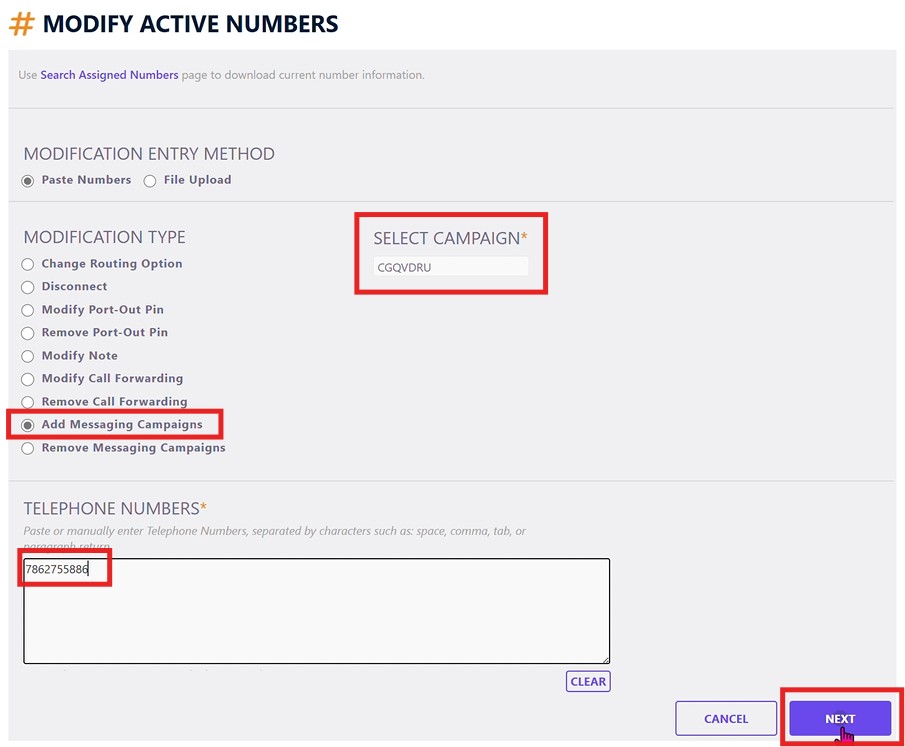
- In the top menu, select "Add Messaging Campaigns".
- Under Select Campaign, choose:
CGQVDRU. - In the Phone Number field, enter the target DID number.
-
Click Next.
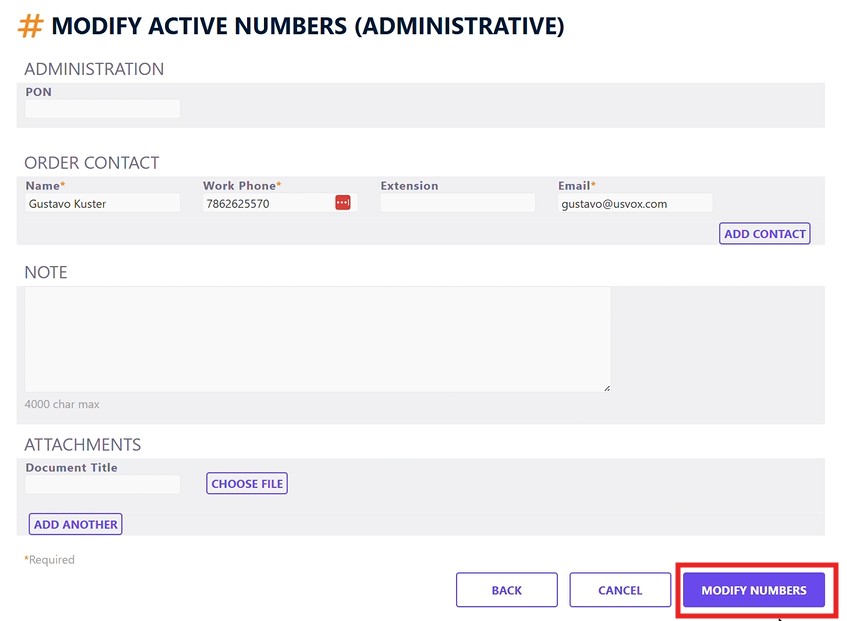
- On the confirmation page, review your settings and click "Modified Numbers" to complete the campaign creation.
📲 SMS Activation for DID Accounts (PortaOne)
For activation, once the custom field is configured for Caller ID behavior, you'll also need to make changes on the DID account if it is being used for SMS services.
Follow these steps:
🔧 Configure SMS Settings on the DID Account
-
Navigate to the Customer Account that owns the DID with SMS service.
Open the DID account you wish to activate SMS on.
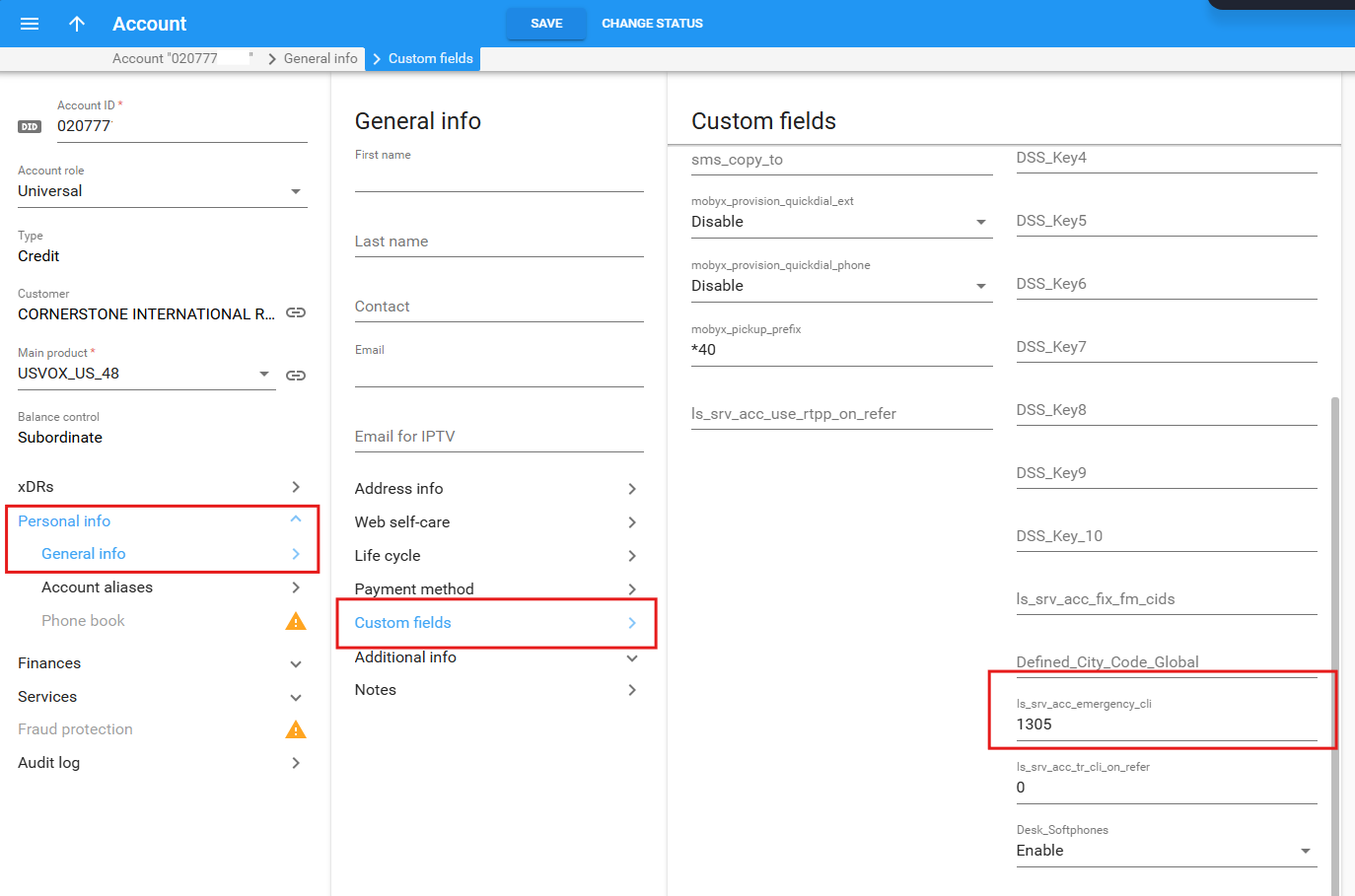
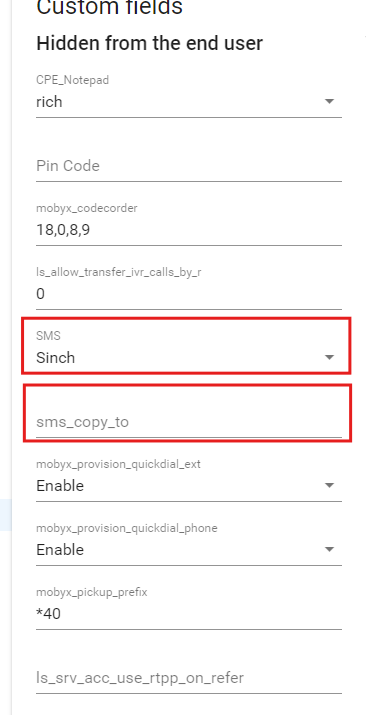
Click the "Custom Fields" tab. (Personal Info>General Info>Custom Fields)
Update the following fields:
SMS→ Set toSinch-
sms_copy_to→ Enter the customer's email address(This will forward a copy of incoming texts to their email inbox.)
(Optional but recommended):
- Add the corresponding 020 account number(s) that will be used to send and receive SMS from this DID.
💡 Notes
- Mobyx Desktop or Mobile Softphone must be used to send and receive SMS on the 020 accounts.
- Only one DID can be active per 020 account for SMS at a time.
🚨911service notes
2.1 ⚠️ If the Extension Sends an Unregistered Number to E911
If a user dials 911 using a number not registered in the E911 system, they could face a $300 fine per call.
✅ To prevent this, set the correct E911-registered number here:
📍 Navigation:
Account > Custom Fields > ls_srv_acc_emergency_cli
📌 Important:
If E911 calls fail or return errors, first confirm the Caller ID is a valid number from your DID inventory.